realdragonluv
10+ year member
Junior Member
I did this for another forum but maybe it will help someone here with their HU install.
Part 1 of 3
I searched these forums for a “how to” on installing an aftermarket Double DIN radio. When I couldn’t find anything here or online I decided to do a quick how to guide. It’s not 100% as I only decided to do it half way through so I had to backtrack some steps.
Vehicle actually performed on: 2010 Dodge Grand Caravan SXT
Items installed:
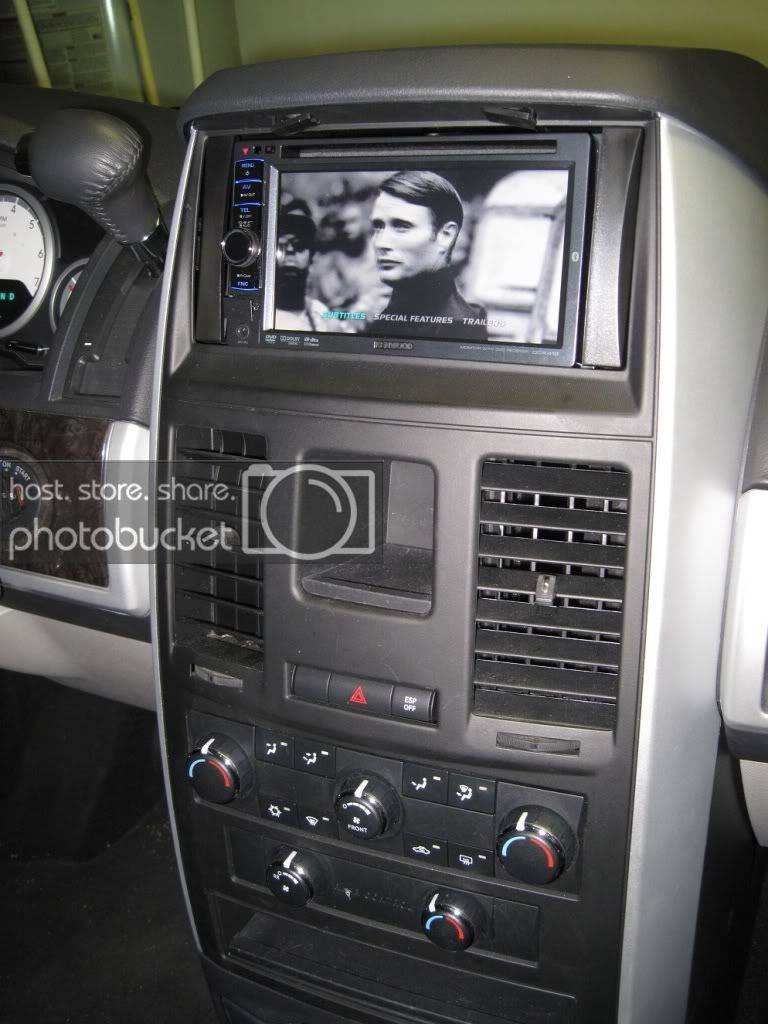
Kenwood DDX418 (had the Kenwood DNX6980 but was actually a step down and returned it for the DDX418)
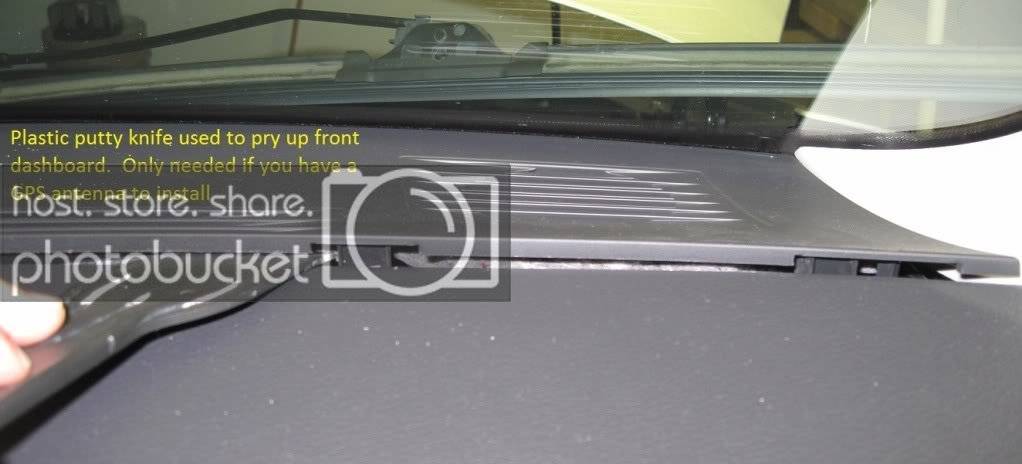
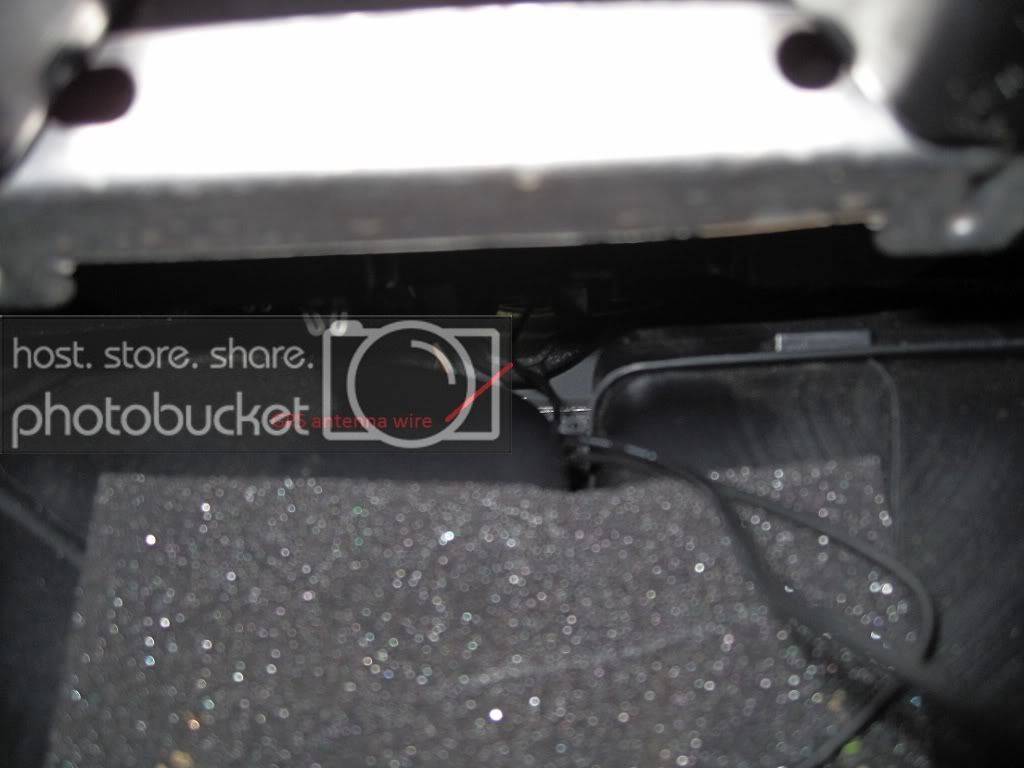
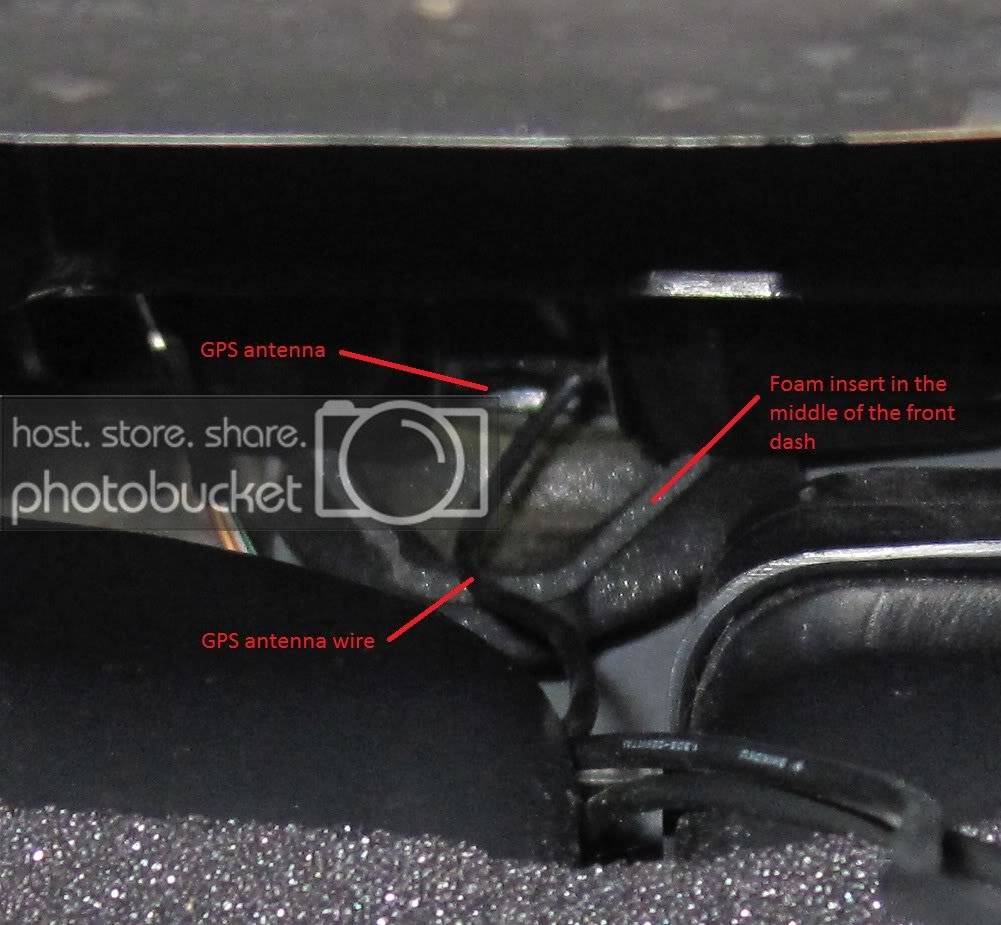
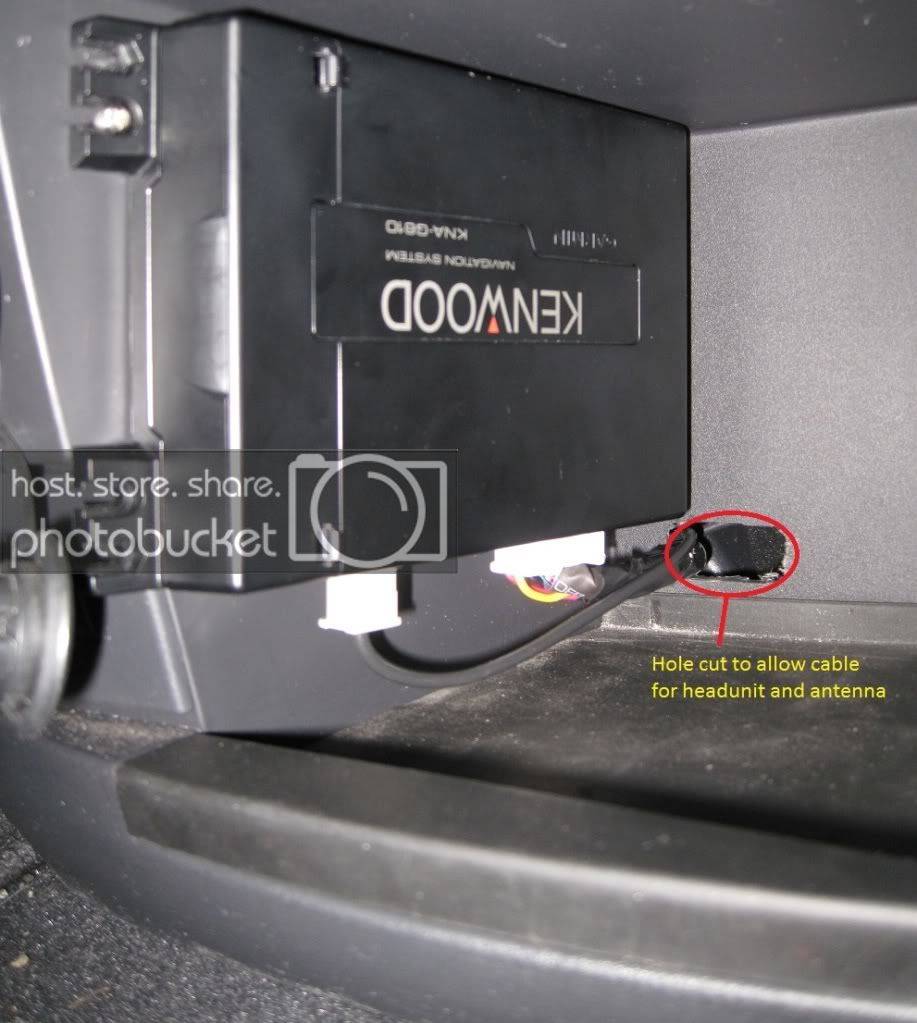
Kenwood KNA-G610 GPS unit
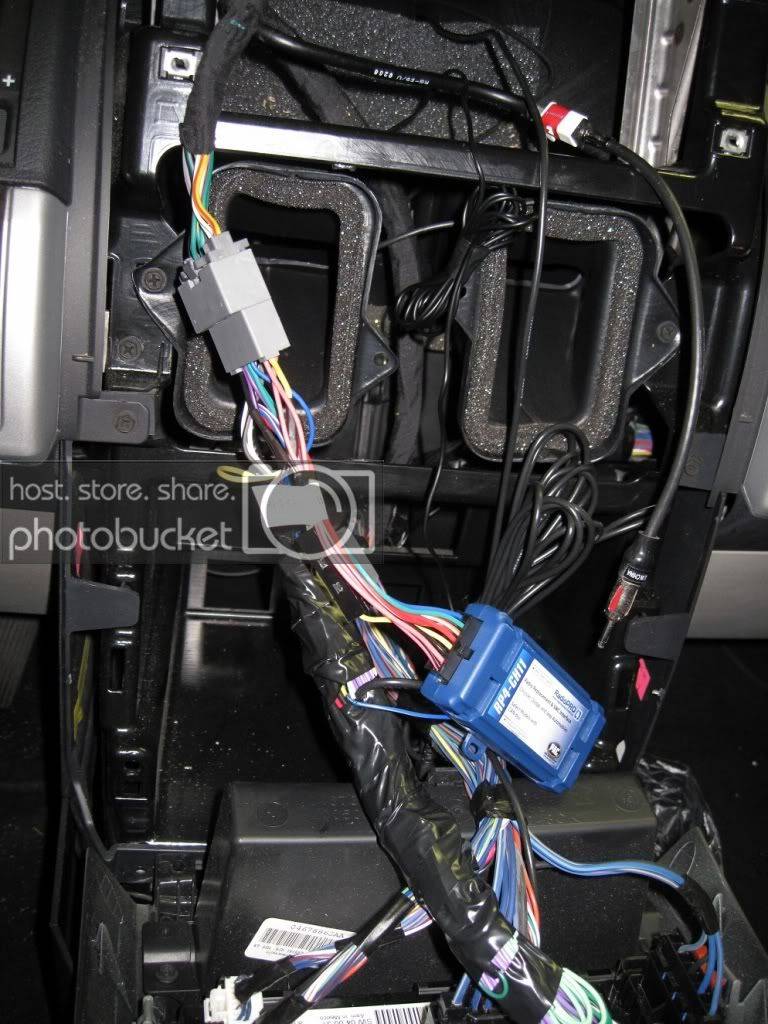
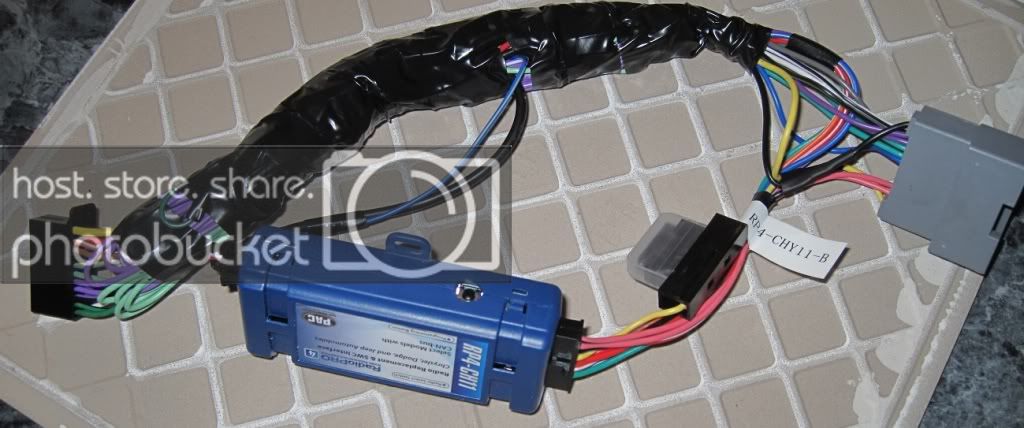
PAC audio RP4-CH11 (This all-in-one unit retains the chimes, the steering wheel controls, and diagnostics feature via the CAN bus.)
Scoche bezel kit
Feel free to ask any questions and I will answer to the best of my ability. If this is useful I will also be trying to do something similar for installing an aftermarket amp and wireing for a 2008 Buick Lacrosse.
Wiring prep:
First I soldered all the wires and used shrink tube to seal them
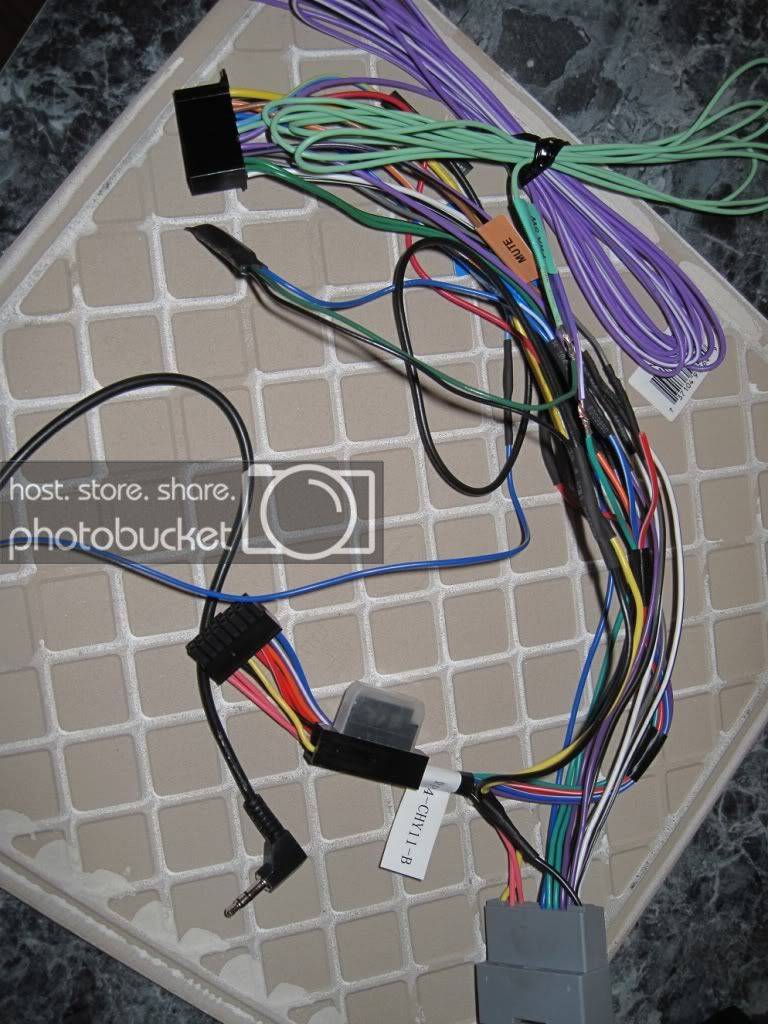
Next I taped all the wires together for a “cleaner” install. This is not needed but does make wire management easier during install. The picture below shows this along with the PAC interface installed.
Removing the old unit and installing the aftermarket unit
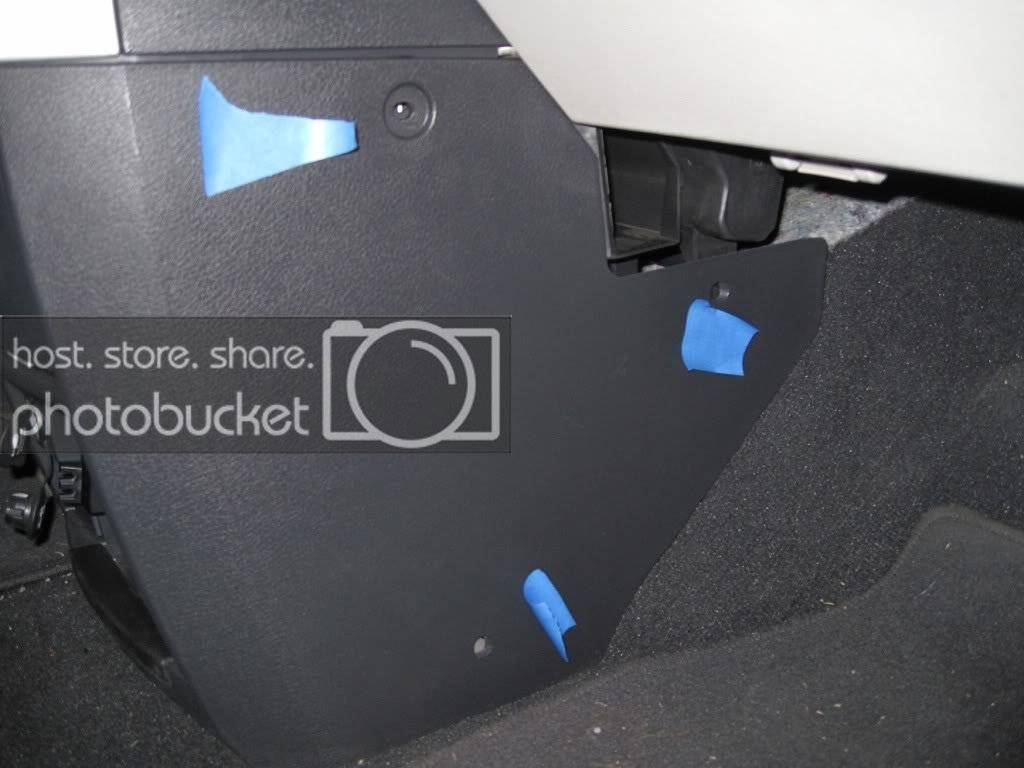
1. Start by carefully removing the plastic screws by the holes marked with blue tape. Once the screws are removed carefully pry out the push pins that the screws were in. Repeat for the driver’s side.
2. The whole plastic piece pulls out. Be aware that there are some clips directly above the cup holders that you will need to pull out. I used a plastic putty knife. Works great without leaving marks.
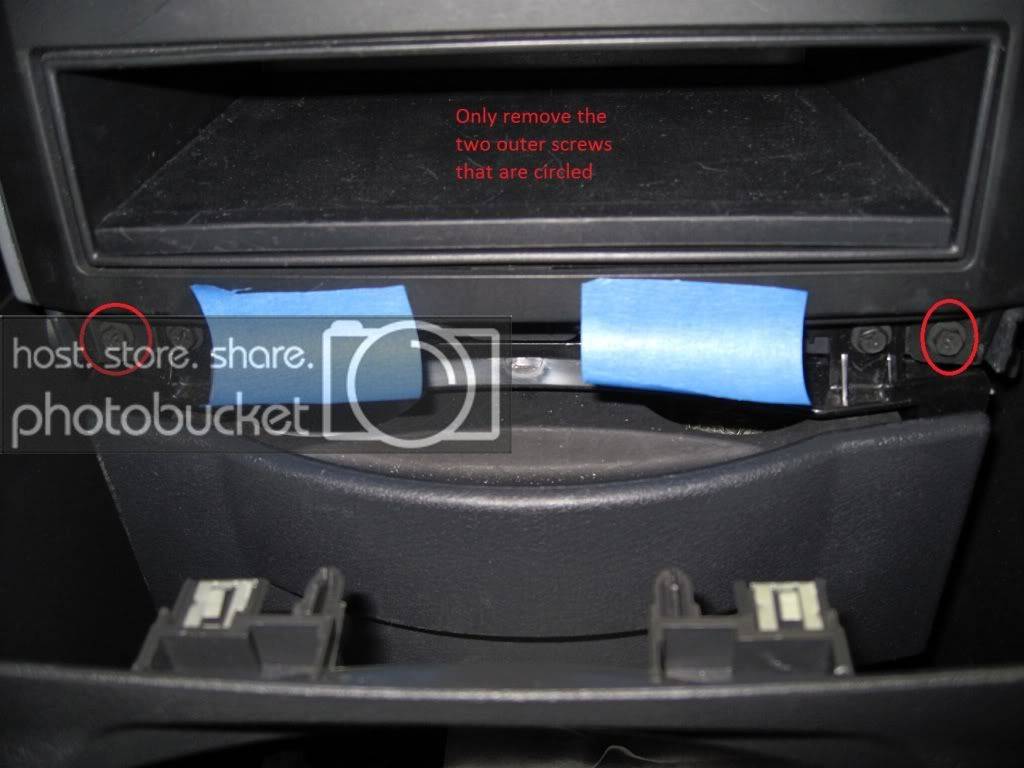
3. Once the lower shroud has been pulled forward (no need to remove it for basic install) Remove the two outer screws circled in red only. The two inner screws don’t need to be removed.
4. The below picture is looking up from the floor. Pull the two tabs open and remove the two screws. (Open them from the center side not the outer side)
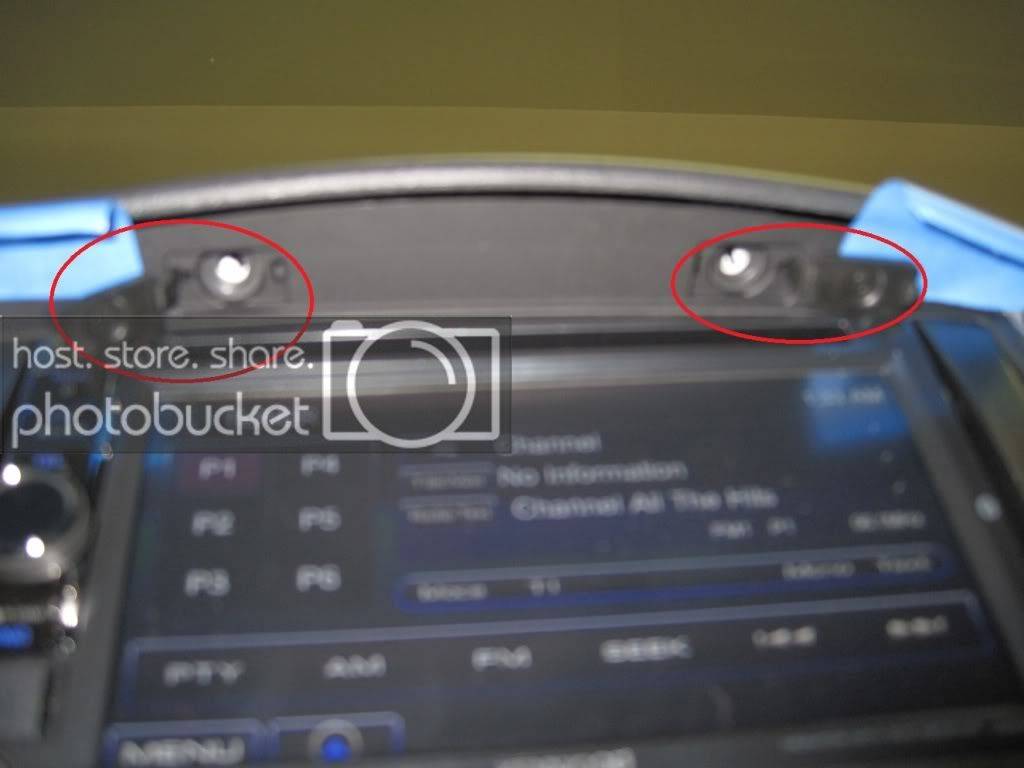
5. Once the screws are out you can then lift the upper center stack cover. This will reveal two additional screws. Remove the two circled screws.
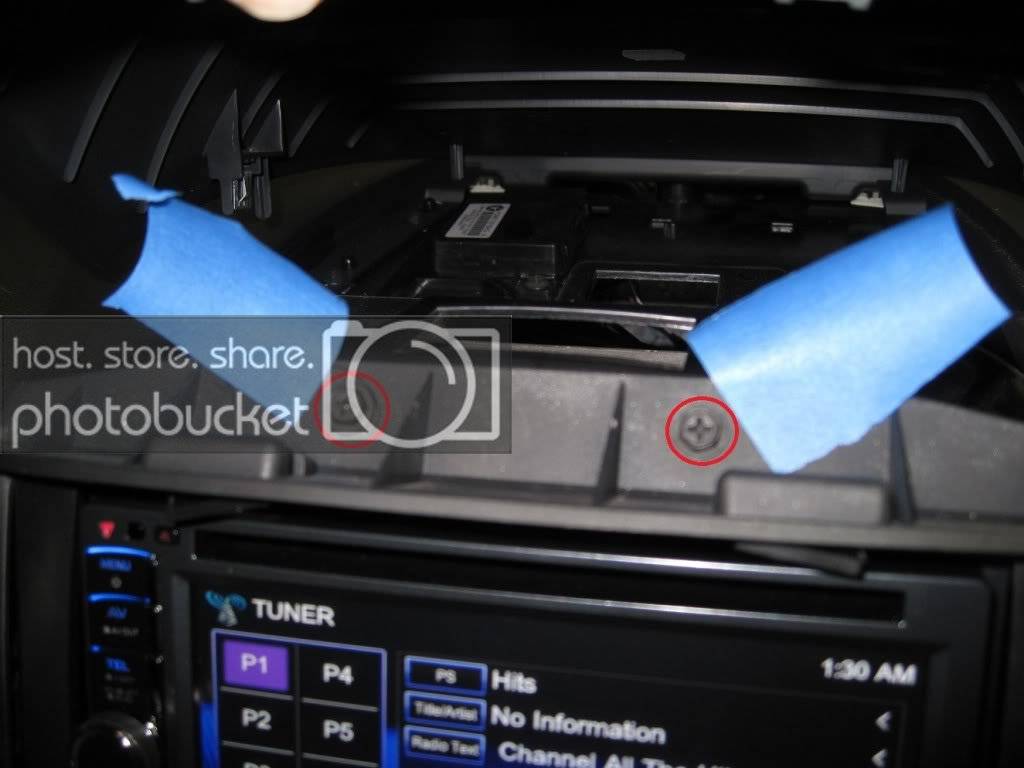
6. This will allow you to fold down the center stack façade. ( I suggest you pull both armrests up to help prevent damage in case you lean on it by accident)
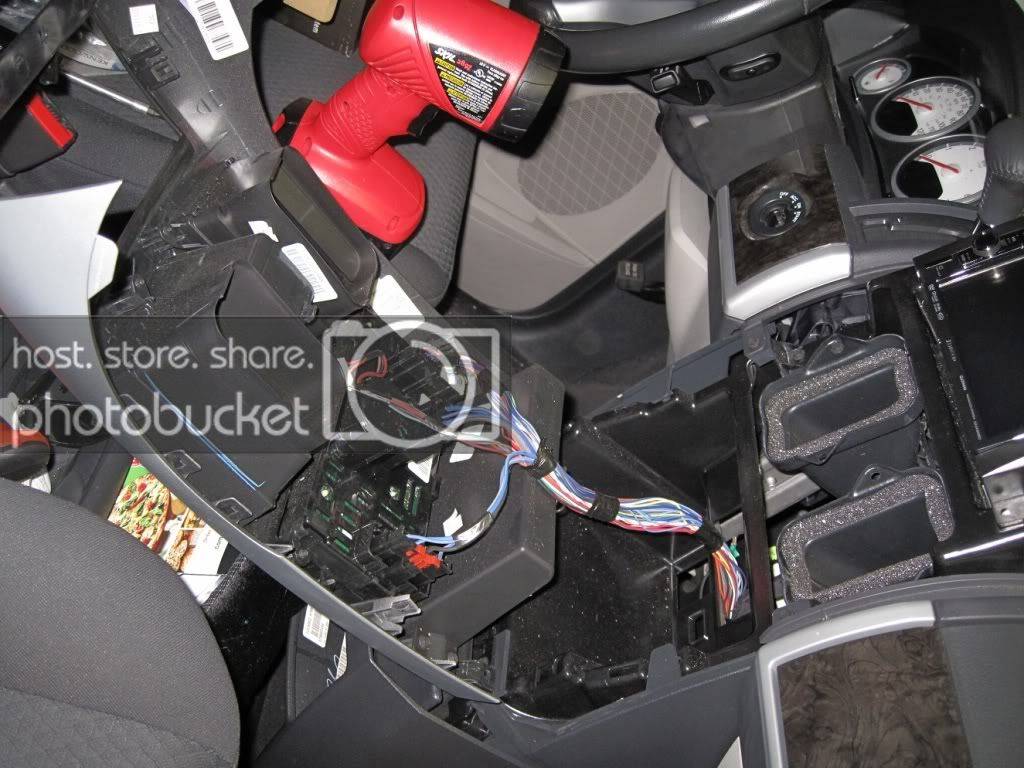
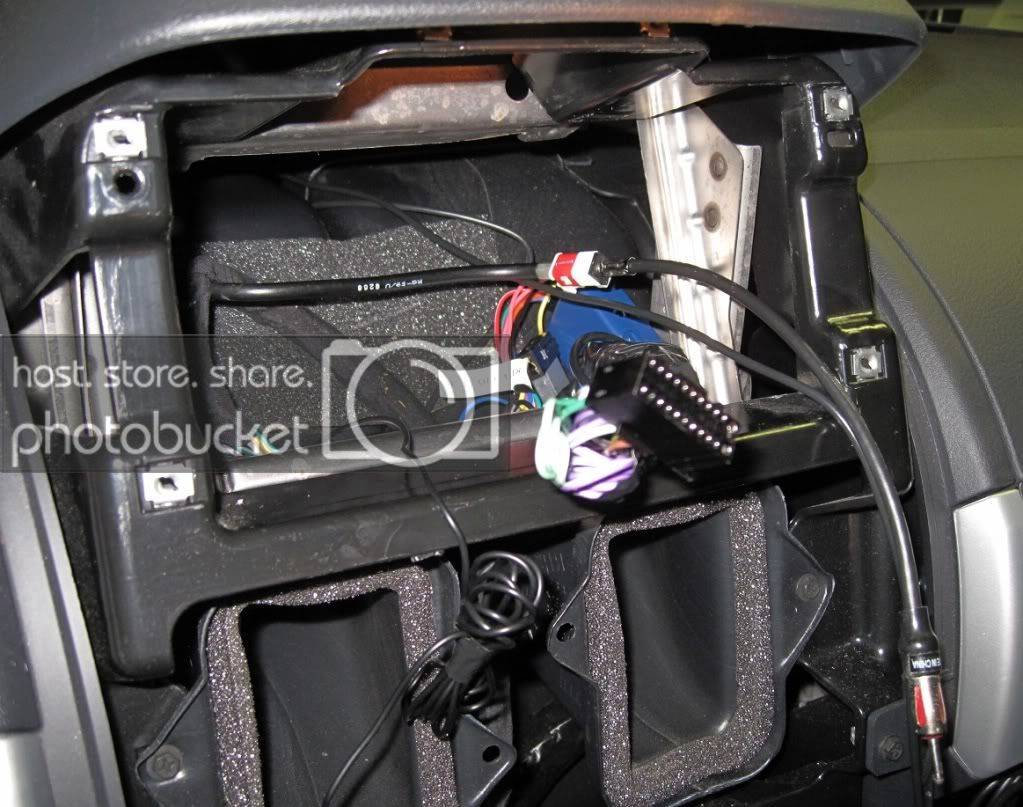
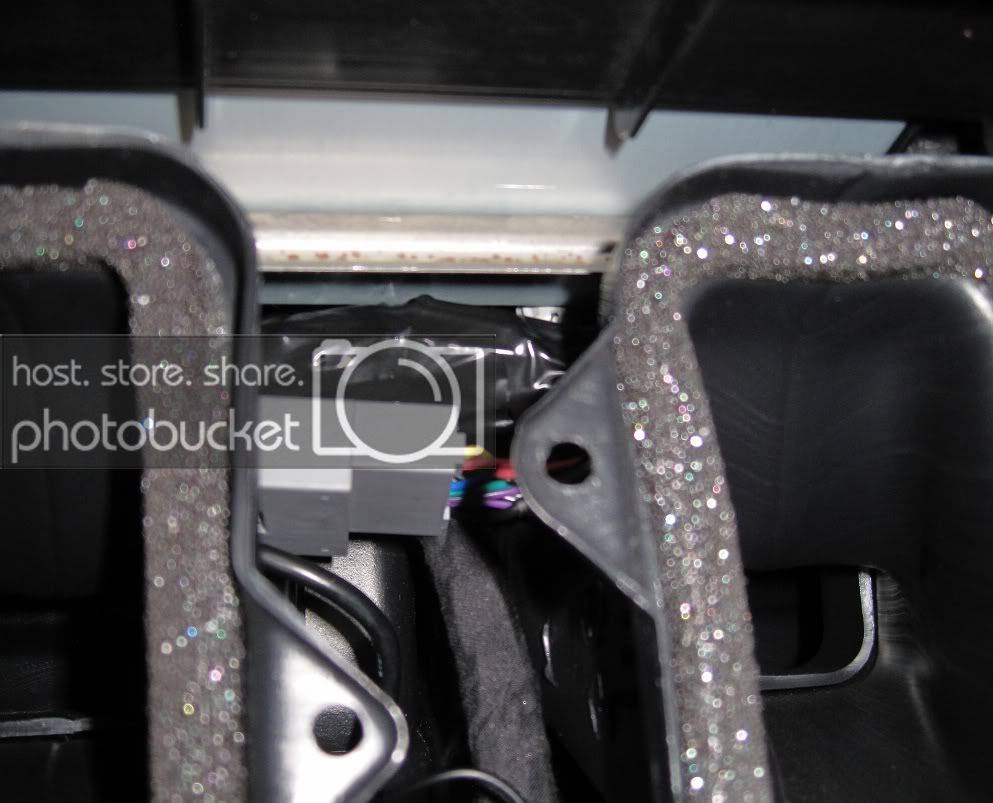
7. Remove the four outer screws around the radio. This will now allow you to pull the radio out.
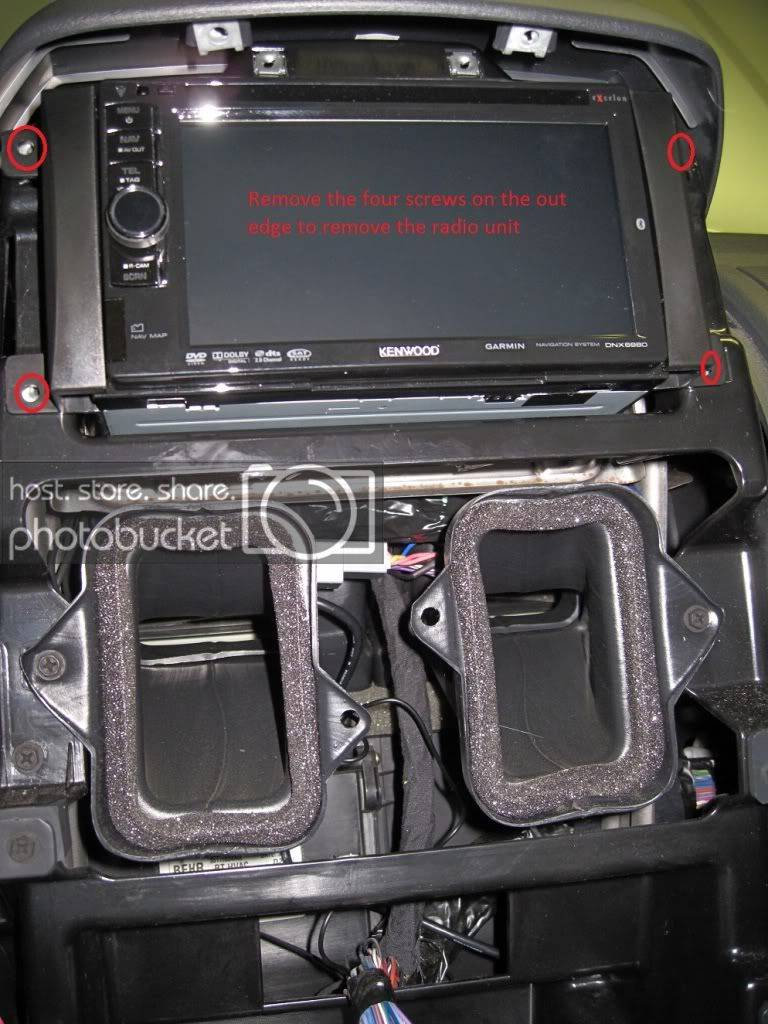
Part 1 of 3
I searched these forums for a “how to” on installing an aftermarket Double DIN radio. When I couldn’t find anything here or online I decided to do a quick how to guide. It’s not 100% as I only decided to do it half way through so I had to backtrack some steps.
Vehicle actually performed on: 2010 Dodge Grand Caravan SXT
Items installed:
Kenwood DDX418 (had the Kenwood DNX6980 but was actually a step down and returned it for the DDX418)
Kenwood KNA-G610 GPS unit
PAC audio RP4-CH11 (This all-in-one unit retains the chimes, the steering wheel controls, and diagnostics feature via the CAN bus.)
Scoche bezel kit
Feel free to ask any questions and I will answer to the best of my ability. If this is useful I will also be trying to do something similar for installing an aftermarket amp and wireing for a 2008 Buick Lacrosse.
Wiring prep:
First I soldered all the wires and used shrink tube to seal them
Next I taped all the wires together for a “cleaner” install. This is not needed but does make wire management easier during install. The picture below shows this along with the PAC interface installed.
Removing the old unit and installing the aftermarket unit
1. Start by carefully removing the plastic screws by the holes marked with blue tape. Once the screws are removed carefully pry out the push pins that the screws were in. Repeat for the driver’s side.
2. The whole plastic piece pulls out. Be aware that there are some clips directly above the cup holders that you will need to pull out. I used a plastic putty knife. Works great without leaving marks.
3. Once the lower shroud has been pulled forward (no need to remove it for basic install) Remove the two outer screws circled in red only. The two inner screws don’t need to be removed.
4. The below picture is looking up from the floor. Pull the two tabs open and remove the two screws. (Open them from the center side not the outer side)
5. Once the screws are out you can then lift the upper center stack cover. This will reveal two additional screws. Remove the two circled screws.
6. This will allow you to fold down the center stack façade. ( I suggest you pull both armrests up to help prevent damage in case you lean on it by accident)
7. Remove the four outer screws around the radio. This will now allow you to pull the radio out.