Hello,
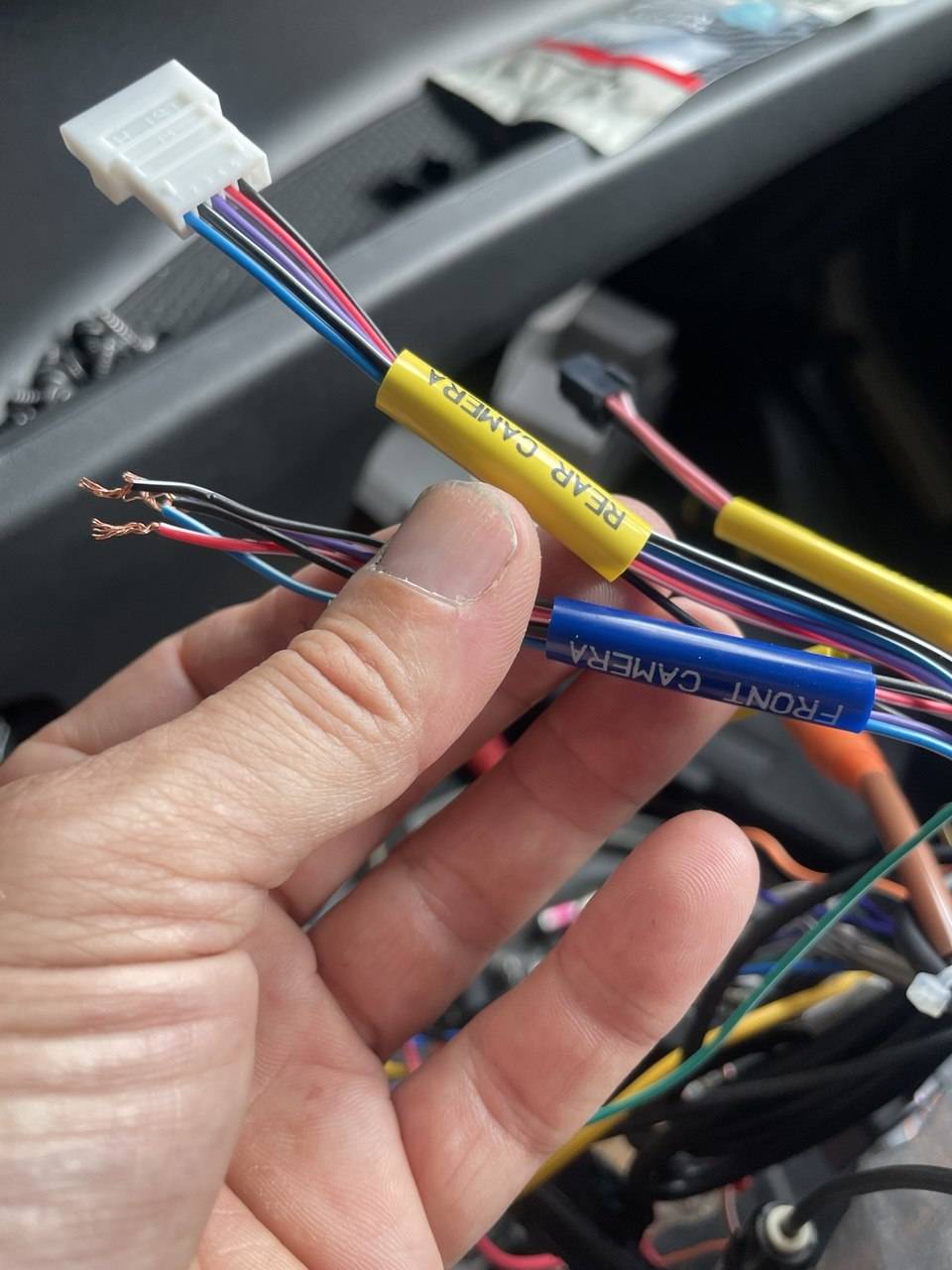
I have bought a Alpine ILX-705D and I want ton plug two cameras which are not alpine.
I thought I could hard wire them to the head unit. I found
this video a Video but it is already old and the wire colors do not correspond anymore to mine. Also I don't have 12V coming out of the FRONT CAMERA plug but 2x6v so I powered my camera somewhere else. I am left with the yellow RCA to connect but I have tried every combination possible I can't make the cameras to show anything. I would greatly appreciate any help at this point.
Thanks
View attachment 72242
To connect your Alpine ILX-705D head unit to two aftermarket cameras, you'll want to carefully consider the wiring and compatibility, especially since the wire colors may not match what you find in standard guides. Here’s a step-by-step approach to troubleshoot and solve your issue:
### 1.
Powering the Cameras:
- Since you're getting 6V from the FRONT CAMERA plug, it's good that you've found a separate power source for your cameras. Most aftermarket cameras operate on 12V, so make sure your power source provides sufficient voltage.
### 2.
Connecting the Cameras:
-
Yellow RCA Cable: This cable is used for the video signal. Connect the yellow RCA from each camera directly to the corresponding RCA input on the head unit (one for the front and one for the rear camera).
- Check the pinouts on the head unit to confirm which RCA inputs correspond to front and rear cameras. This should be documented in the head unit's user manual.
### 3.
Wiring Colors:
- The traditional wiring color codes might not apply. Here’s a general guide:
-
Black Wire: Ground
-
Red Wire: Power (12V)
-
Yellow RCA: Video Signal
- If your Alpine harness has different colors, please refer to any documentation that came with the head unit or check the manufacturer's website for wiring diagrams.
### 4.
Settings Adjustment:
- After wiring, go to the settings in the head unit:
- Ensure that the camera settings in your Alpine ILX-705D are configured correctly.
- Sometimes, a specific setting has to be turned on to recognize the camera input.
### 5.
Testing:
- Once everything is connected, test each camera:
- Engage the reverse gear for the rear camera.
- Use the front camera input manually if needed.
- Make sure the cameras are powered on by checking for indicators (if available) or verifying the wiring.
### 6.
Troubleshooting:
- If the video still does not show:
- Double-check that the RCA connections are secure.
- Ensure that the cameras themselves are functioning by testing them with another monitor if possible.
- Verify the power connections to the cameras are correct and stable.
### 7.
Consult the Manual:
- If you're still having issues, revisit the Alpine ILX-705D user's manual for specific instructions about connecting cameras or troubleshooting.
Feel free to share any specific wire colors you encounter, or any additional info or tests you've conducted, and we can see if any further troubleshooting is needed! Other members might also have insights, so let's see if anyone else has experiences or advice to share!