Have you always been thinking convert your movies and play on your Nintendo DS? The wondering can stop now. Here I recommend you you two ways to do that. One way is Moonshell + BatchDPG + AviSynth. This way is really hard to operate but it is free. The other way is really easy to do and it cost you a little: Moonshell + DPG Converter.
DPG- the abbreviation of nDs-mPeG, is a special format of MPEG-1 video specifically for playback using the homebrew Moonshell program for the Nintendo DS. The video is encoded on a computer and then transferred, along with Moonshell, to the DS for playback.
Part 1. How to convert movies to DPG with Moonshell/BatchDPG/AviSynth
There are a few things you need to download:
Moonshell
ffdshow
AviSynth
BatchDPG
Microsoft .NET
Step 1: Download all the programs
Tips: When you download Batch from the link in my post do not forget to copy “avisynth.dll” to C:\Windows\System32 directory.
Step 2: Input
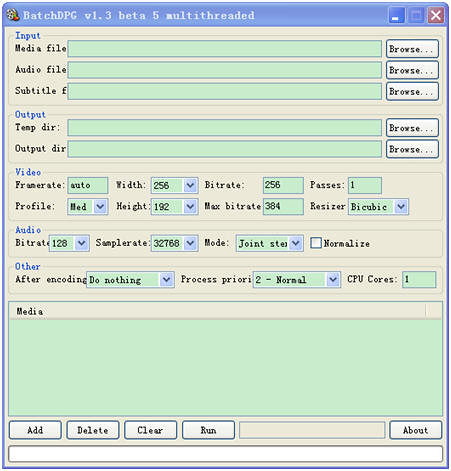
After you install it and you will see the following interface.
In the Input section, you can load the movie you want to convert and you can also add subtitle file and audio file
Step 3: Output
In this section you need to select a temporary path and a output directory.
Step 4: Video/Audio
If you want, you can change the setting in the video and audio section. But it is set to a good format by default anyway.
To add your movie file to the queue press the button “add” at the bottom and then you can click “run” to start the converting.
Step 5: Insert you SD Card and transfer the extracted Moonshell files and converted DPG video files from your computer to SD Card.
Part 2: How to convert movies to DPG with DPG Converter
You need to download Moonshell if you don't have it in your SD Card and Download the DPG Converter.
Step 1: Load files
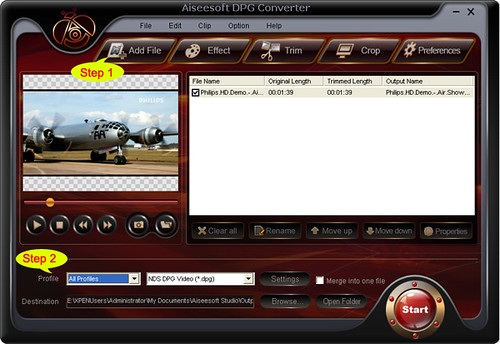
Click “Add File” or “File”> “Add File” to load the video you want to convert.
Step 2: Choose profile and adjust settings
You can choose the output profile from a drop-down list “profile”. This powerful DPG Converter can not only convert videos to DPG format, but also can convert your videos to other formats, such as mp4, wmv, avi, mpeg, mov, mkv, flv, 3gp and other popular video format.
You can adjust the settings of the output video, you can adjust the Resolution, encoder, Bitrate, and other specific settings of the video and you can also save the setting as your own profile.
After everything is done, you can click the “Start” button and later you will get your DPG movie.
Tips: You can also do many video editing works with it:
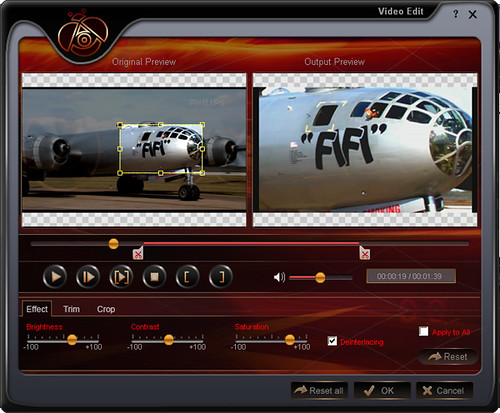
1.Effect: You can adjust “Brightness”, “Saturation”, “Contrast” of the output video as you want
2.Trim: Tis function allows you to pick up one part of the video to convert. You can do it in 3 ways, a: set the exact start time and end time to trim b: click the “Trim From” and “Trim To” button when you preview the video c: drag the “trim bar” below the preview window and choose where to start and end.
3.Crop: You can use “crop” function to remove the black edges on your movie and you can also choose your play area. You can crop your video in 2 ways, a: drag the frame on the preview window b: set the exact crop value.
Part 3: How to convert movies to DPG with DPG Converter for Mac
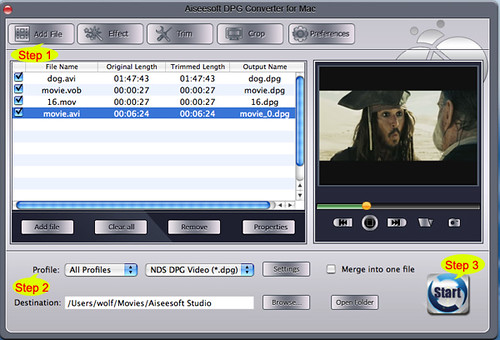
Step 1: Load the video you want to convert by click “Add File”
Step 2: Choose output profile and adjust the setting of the output video
Step 3: Conversion. Click “Start” to begin the conversion.
Part 4: How to convert your DVD movies to DPG format.
Here you just need a DVD to DGP Converter.
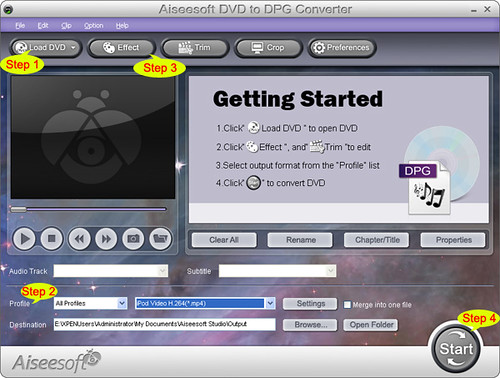
Step 1: Load your DVD
Put your DVD to your DVD Drive and click “Load DVD”.
Step 2: Choose output profile
You can choose your output profile from a drop-down list “Profile” and also you can adjust the specific setting of the output DPG video, such as encoder, resolution, bitrate and so on.
Step 3: Edit Video
You can edit the effect of the output video including “Brightness”, “Saturation”, “Contrast” and so on.
Also you can “Trim”, “Crop”, “Merge” video according to your need.
Step 4: Conversion
After all the things done, you can click “Start” button to begin your conversion.
DPG- the abbreviation of nDs-mPeG, is a special format of MPEG-1 video specifically for playback using the homebrew Moonshell program for the Nintendo DS. The video is encoded on a computer and then transferred, along with Moonshell, to the DS for playback.
Part 1. How to convert movies to DPG with Moonshell/BatchDPG/AviSynth
There are a few things you need to download:
Moonshell
ffdshow
AviSynth
BatchDPG
Microsoft .NET
Step 1: Download all the programs
Tips: When you download Batch from the link in my post do not forget to copy “avisynth.dll” to C:\Windows\System32 directory.
Step 2: Input
After you install it and you will see the following interface.
In the Input section, you can load the movie you want to convert and you can also add subtitle file and audio file
Step 3: Output
In this section you need to select a temporary path and a output directory.
Step 4: Video/Audio
If you want, you can change the setting in the video and audio section. But it is set to a good format by default anyway.
To add your movie file to the queue press the button “add” at the bottom and then you can click “run” to start the converting.
Step 5: Insert you SD Card and transfer the extracted Moonshell files and converted DPG video files from your computer to SD Card.
Part 2: How to convert movies to DPG with DPG Converter
You need to download Moonshell if you don't have it in your SD Card and Download the DPG Converter.
Step 1: Load files
Click “Add File” or “File”> “Add File” to load the video you want to convert.
Step 2: Choose profile and adjust settings
You can choose the output profile from a drop-down list “profile”. This powerful DPG Converter can not only convert videos to DPG format, but also can convert your videos to other formats, such as mp4, wmv, avi, mpeg, mov, mkv, flv, 3gp and other popular video format.
You can adjust the settings of the output video, you can adjust the Resolution, encoder, Bitrate, and other specific settings of the video and you can also save the setting as your own profile.
After everything is done, you can click the “Start” button and later you will get your DPG movie.
Tips: You can also do many video editing works with it:
1.Effect: You can adjust “Brightness”, “Saturation”, “Contrast” of the output video as you want
2.Trim: Tis function allows you to pick up one part of the video to convert. You can do it in 3 ways, a: set the exact start time and end time to trim b: click the “Trim From” and “Trim To” button when you preview the video c: drag the “trim bar” below the preview window and choose where to start and end.
3.Crop: You can use “crop” function to remove the black edges on your movie and you can also choose your play area. You can crop your video in 2 ways, a: drag the frame on the preview window b: set the exact crop value.
Part 3: How to convert movies to DPG with DPG Converter for Mac
Step 1: Load the video you want to convert by click “Add File”
Step 2: Choose output profile and adjust the setting of the output video
Step 3: Conversion. Click “Start” to begin the conversion.
Part 4: How to convert your DVD movies to DPG format.
Here you just need a DVD to DGP Converter.
Step 1: Load your DVD
Put your DVD to your DVD Drive and click “Load DVD”.
Step 2: Choose output profile
You can choose your output profile from a drop-down list “Profile” and also you can adjust the specific setting of the output DPG video, such as encoder, resolution, bitrate and so on.
Step 3: Edit Video
You can edit the effect of the output video including “Brightness”, “Saturation”, “Contrast” and so on.
Also you can “Trim”, “Crop”, “Merge” video according to your need.
Step 4: Conversion
After all the things done, you can click “Start” button to begin your conversion.