Oh come on, its not THAT complicated
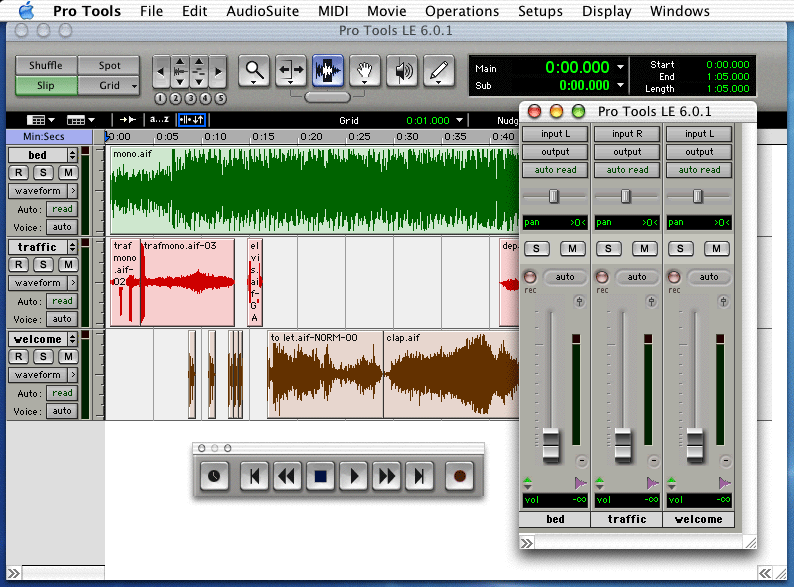
First: the control window, the first button determines what kind of time marking u want to use (clicks, or real time), the second button returns to 0, the 3rd is rewind, 4th is stop, 5th play, 6 fast forward, 7 goes to the end, 8 arms recording
Next: the track list, on the left shows what u name your track, and u can view the waveform, panning automation, or volume automation, click the R to be able to record, click S to mute everything but that track, click M to mute that track. in the middle is all the data that you've recorded
The mixing console is on the right, you've got your faders, panning controls, solo, mute, and record. Basically here you can record panning and fading automation
the top portion: the four buttons grouped in the top left are how u want the waveforms to move, slip means u can move it wherever u want, shuffle means it will put it right at the end or the beginning of another waveform, spot means u can put it in a specific spot (time specific), and grid means that u can put it anywhere on the grid that is created
now the buttons to the right of that: these buttons effect the way the waveforms are presented, the left and right arrows make it longer or shorter
the next button zooms in on it, and the next button change the type of waveform u are looking at
the zoom tool: lets u click on anypart of the waveform to zoom in on it
the trimmer: lets u cut the waveform from either the beginning or the end
the selector tool: you can highlight any part of the waveform
the grabber tool: selects an audio clip
now when u click the little tab underneath, u can use all of them at the same time, depending on where u put your cursor on the waveform
the little speaker lets u play the waveform back at ur own tempo (depending on how fast u move your mouse across the wave)
and then the pencil lets u manually insert panning and volume changes
if u wanna know more, ask //content.invisioncic.com/y282845/emoticons/smokin.gif.f1dc8d2acb1809e863ebd6a47eaa0d45.gif