Directions for photoshop users(i used CS3 but this is all stuff that can be done in CS2 and 7.0):
Step one, figure out which color you want your main color to be. as in if you want to do it in reds, blues, oranges, whatever. In my example I picked red.
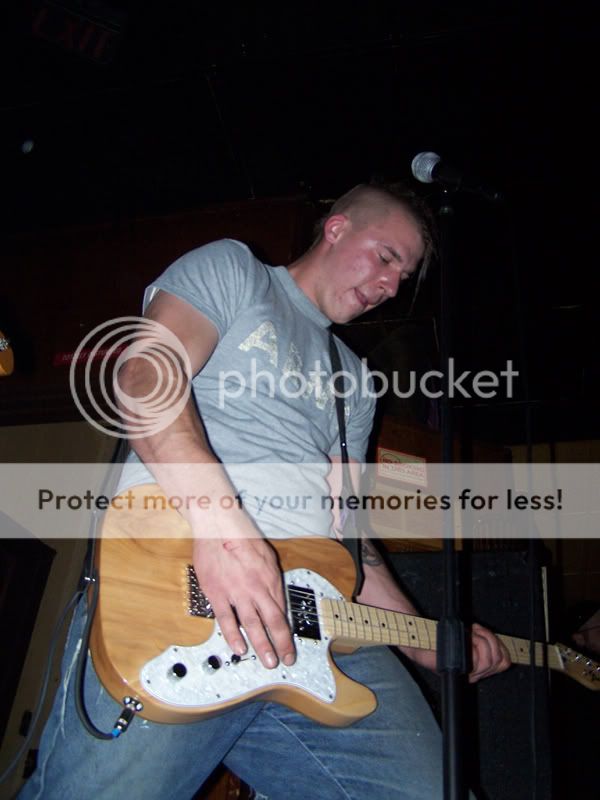
here is my original picture. A picture of my friend Timmy playing guitar:
So open up your image in photoshop. click the menu "Image", then follow that to "Adjustments" then click on "Hue/Saturation" or just skip all of that and hit Ctrl+U.
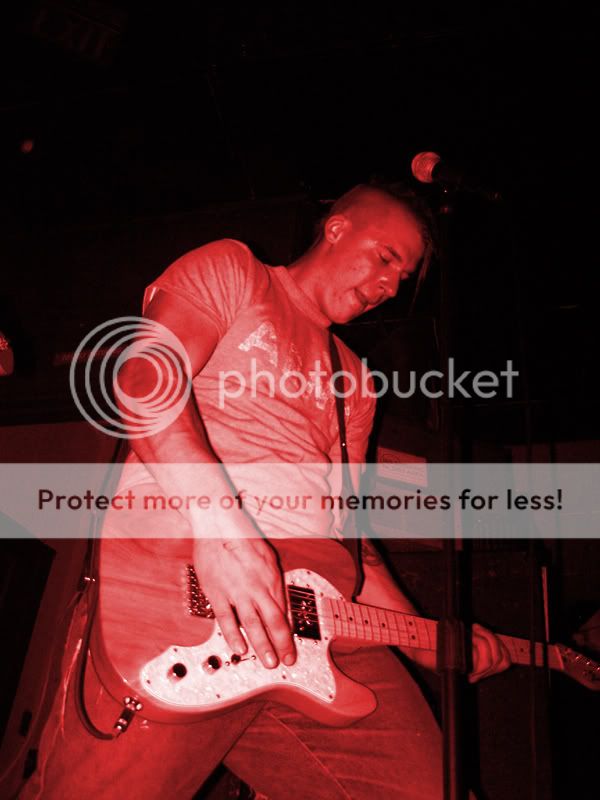
When in there, click the checkbox that says "Colorize" and move the "Hue" slider until you find the color you have in mind. Then move the "saturation" slider until you have the brightness you desire.
This is what the picture looks like after my hue/saturation adjustments:
Now there are two different filters that you can use to achieve this effect. One gives you many more levels, and the other just gives you two layers(colors) so i'll show you examples of both and tell you how to do them.
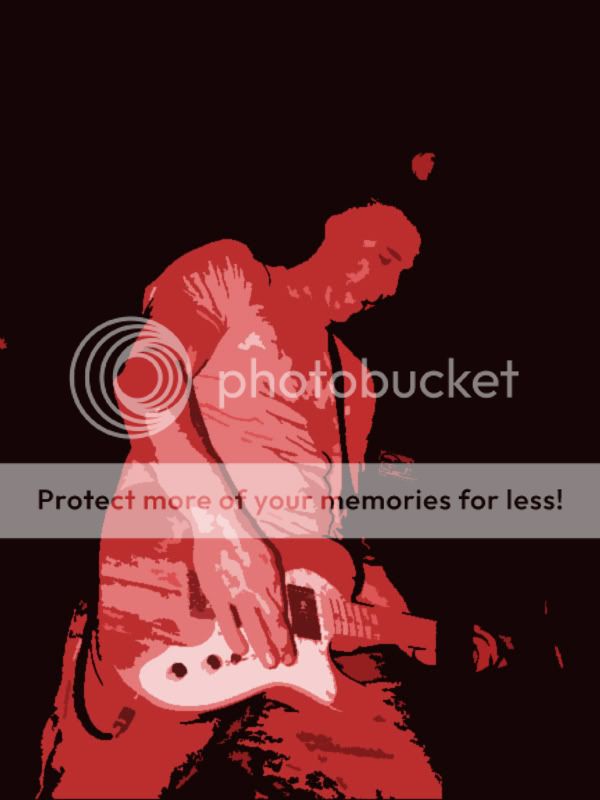
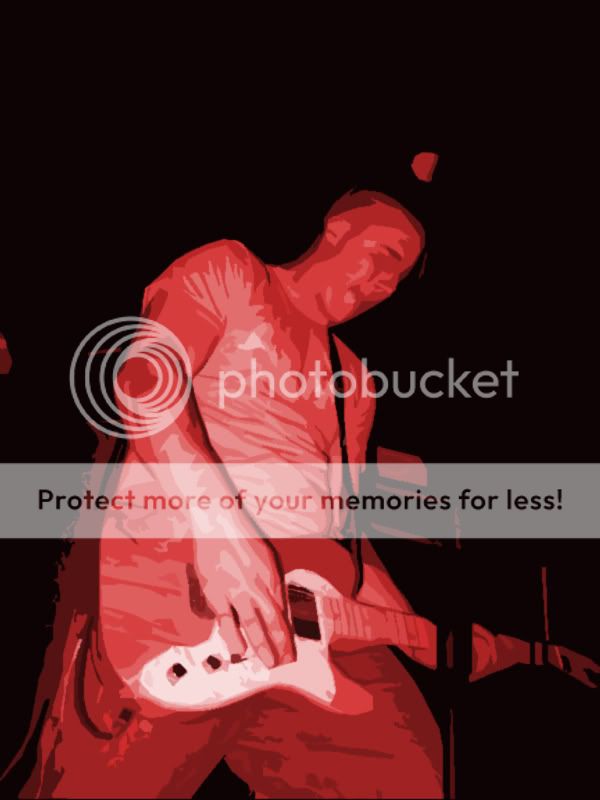
The first one, and much more detailed version(more work and more colors) is to use the "Cutout" filter in the artistic filters section. The only options that really affect the photo are "Levels" and "Edge Simplicity". You want edge simplicity at 0. You want the "levels" slider as high as you're willing to do the work.
Here's an example of my original picture with 4 levels:
And here is the same picture with 8 levels:
The more levels, the more work, but the more detail you'll get.
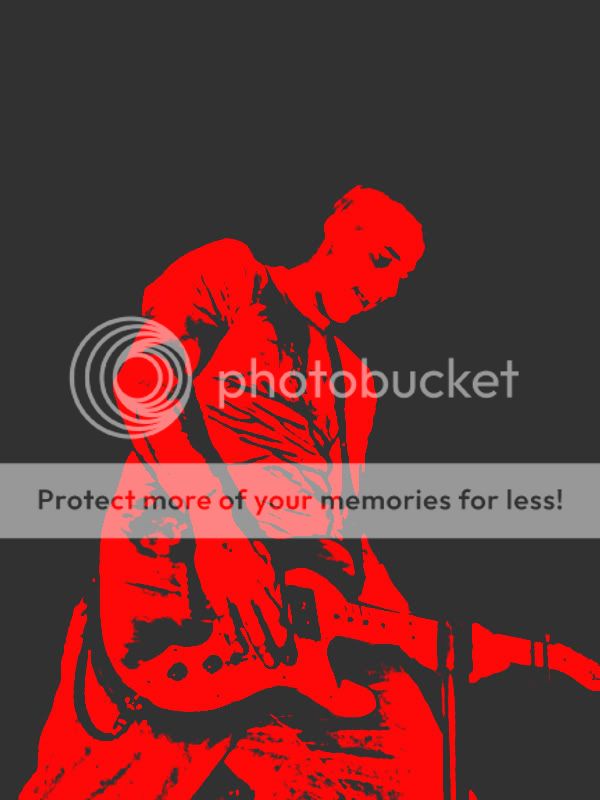
The second filter option that works pretty well, is the "photocopy" filter under the "Sketch" filter gallery. You want the Highest detail possible(24) and the highest darkness available(50) in order to do stuff like this.
Here is an example with the picture used above:
In order to get the grid ontop of your picture, go to the menu "View" then "Show" then "Grid" or simply push Ctrl+' (that's the apostophe((sp?))
then follow all other directions as listed in tutorial.